Upload a photo
Choose an image with a clear subject. Processing happens locally in your browser; ordinary uploads are not sent to a server.
Upload a portrait, pet photo, logo or illustration and turn it into clean pixel art in your browser. You control the pixel size and number of colors. The same result can also become a color-coded Perler, Hama or fuse bead pattern.
Convert a photo free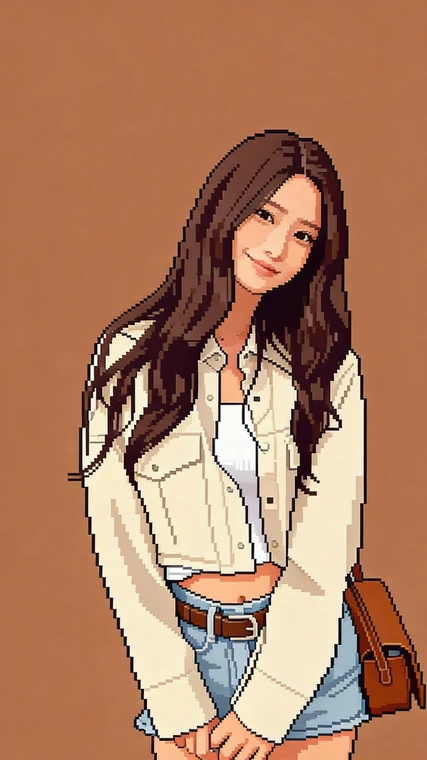
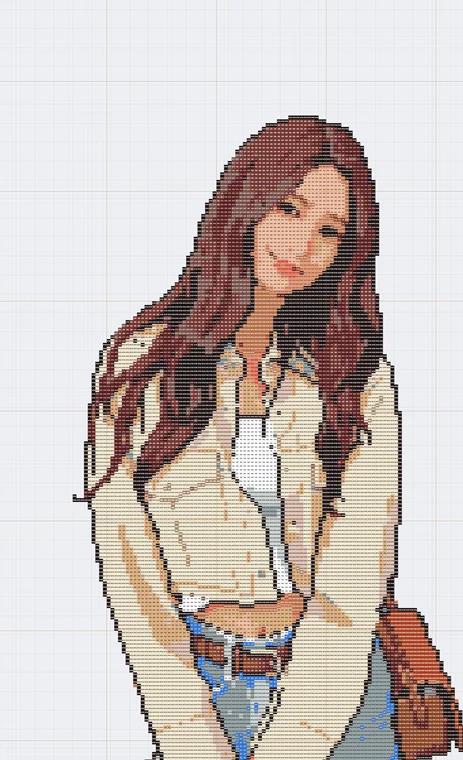
Pixel art simplifies a picture into a grid of solid-color squares. A smaller grid creates bold, retro 8-bit art. A larger grid keeps more of the face, hair, clothing and background. Because every square also maps to one physical bead, the converter can label each cell with a real color and count how many pieces you need.
Choose an image with a clear subject. Processing happens locally in your browser; ordinary uploads are not sent to a server.
Raise Beads wide for more detail. Lower Max colors for a cleaner palette and an easier physical build.
Save the finished artwork, or follow the labeled grid and exact color count to make it with fuse beads.
Both use the same square grid, but they answer different needs. A normal pixel image only stores screen colors. A bead pattern also needs a limited physical palette, readable color labels, dimensions and a shopping count. This converter provides both views, so you can use the result as an avatar or game-style image and still build the same design with beads.
Perler, Hama and other fuse bead brands use different color names. The English maker matches the displayed preview to its supported palette; always compare screen colors with a physical color chart before buying a large quantity.
Yes. Converting ordinary images and creating the grid is free and unlimited. Optional AI image generation uses credits.
Try 32 to 48 cells wide for bold retro art and 64 to 96 for portraits. More cells preserve detail but also require more beads if you build the design.
Yes. Use the background-removal control for a simple solid background, or crop closely around the subject before conversion.
Yes. Lower the color count and use a coarse grid for a blocky look. The output is an image and bead grid, not a Minecraft world file.
Ordinary photo conversion runs locally in the browser. Only the separate AI cartoon feature sends an image to the server for processing.